Self-Hostember #15: Linkding
Table of Contents
ℹ️ This post is part of a series , and it assumes that you’ve followed the instructions from Day Zero first.
Bitrot, enshittification and a eulogy for Pinboard
We begin this post on a sour note. While Cory Doctorow’s idea of enshittification refers to a more specific decay in quality of two-sided markets, it is not difficult to extend the concept a little bit to describe what is happening to the formerly-beloved service Pinboard .
Founded in the late 2000s, by the mid-2010s, Pinboard had become the go-to example of a boutique software business which was able to thrive without taking on millions in outside funding and still delight its userbase, and it’s solo developer Maciej Cegłowski was the darling of the one-man-army-types mythologised in the unstyled annals of the Orange Website. Cegłowski’s skill with words and keen eye for opportunity did not hurt this reputation, as he garnered kudos and paying customers by quickly capitalizing on the del.icio.us exodus .
I also signed up to be a paying Pinboard customer in its heyday. In fact, I prepaid for ten years in 2021, after about two years of use because I enjoyed the simplicity and the idea of supporting a small company.
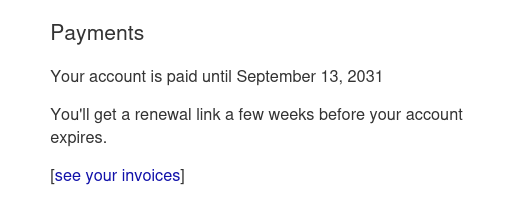
Unfortunately for me, this was also around the time the service started experiencing decline. First, the new features stopped. Then the API started becoming unreliable - rendering the third-party browser extensions even less useful than before, before eventually all updates to the website stopped altogether, and the only news about it became that of frequent outages and lack of support.
Pinboard and Maciej had a good run, but now he seems more interested in writing about the mechanics of space travel than running his business. There is no shame in it, but it is unfortunate for those who were sold the idea of a platform immune from the evils of venture capital.
Thankfully, you are reading a series about self-hosting software to be free of dependence on third-party services. Pinboard does offer an export of your bookmarks, so we can take them to a platform only we are able to abandon.
Linkding
Our choice for replacing Pinboard is Linkding . Bookmarking services are probably the most ubiquitous category after task-management apps in the self-hosting world, so you can have your pick. After looking at some of the more popular options like Wallabag and Karakeep, we decided to give Linkding a try instead, especially because its styling is very Pinboard-like and I just spent hundreds of words talking about Pinboard, and everybody values narrative continuity.
Apart from that, it promises some very high-value qualities for a self-hosted service: “Low Maintenance” and “Customizable”. It also supports archiving of bookmarked URLs as full HTML pages where applicable (although if you want actual Wayback Machine-style archiving you should check out our post on ArchiveBox ).
Linkding is a very standard Django application, so contributing new features to it should be fairly straightforward as well (but hopefully not necessary).
Installing via Docker
Let’s get straight into it. Linkding recommends installing as a docker container, so that’s what we will do here. (There is also a demo to try it out if you’d rather do that first ).
First, let’s prep the stage.
mkdir -p linkding/data
cd linkding
Then we will adapt the official docker-compose to our requirements. Notably, binding to localhost.
cat > docker-compose.yaml <<EOF
services:
  linkding:
    container_name: "${LD_CONTAINER_NAME:-linkding}"
    image: sissbruecker/linkding:latest
    ports:
      - "127.0.0.1:${LD_HOST_PORT:-9090}:9090"
    volumes:
      - "${LD_HOST_DATA_DIR:-./data}:/etc/linkding/data"
    env_file:
      - .env
    restart: unless-stopped
EOF
We also need to get the .env file from their repo. We will not need to modify anything in this for our purposes but if you want to pre-create a superuser or change the path at which the application is served at, this is where you’ll do all of that. The full list of options is well-documented
.
curl -L https://raw.githubusercontent.com/sissbruecker/linkding/refs/heads/master/.env.sample > .env
Linkding uses SQLite by default, so we do not need to configure any DB credentials. It also helpfully stores its data in the local data directory that we created in the first step. We only have one more thing to do: creating the super user. However, we first need to start everything up for it.
docker compose up -d
And after a few moments:
pawan@playground:~/s/linkding$ docker compose ps
NAME       IMAGE                          COMMAND            SERVICE    CREATED          STATUS                    PORTS
linkding   sissbruecker/linkding:latest   "./bootstrap.sh"   linkding   58 seconds ago   Up 58 seconds (healthy)   0.0.0.0:9090->9090/tcp, [::]:9090->9090/tcp
We should see the service running.
Now, let’s create that super user. Instead of specifying the super user in the config file, we’ll generate it dynamically - this is why we needed the containers to be spun up first. (replace with your own details, of course)
docker compose exec linkding python manage.py createsuperuser --username=pawan --email=pawan@colocataires.dev
We will be prompted to enter a password - choose a secure one because there is actually some nice validation to prevent using passwords like ‘hunter2’!
And we are almost done! Let’s add an entry to our Caddyfile for it.
linkding.example.com {
    reverse_proxy 127.0.0.1:9090
}
And reload caddy to apply the new config:
sudo systemctl reload caddy
Tour and use
Visiting the domain our browser will redirect us to the sign-in page. Hopefully you remember the password you set for your superuser!
Entering it drops us into the homepage - minimal but nice.
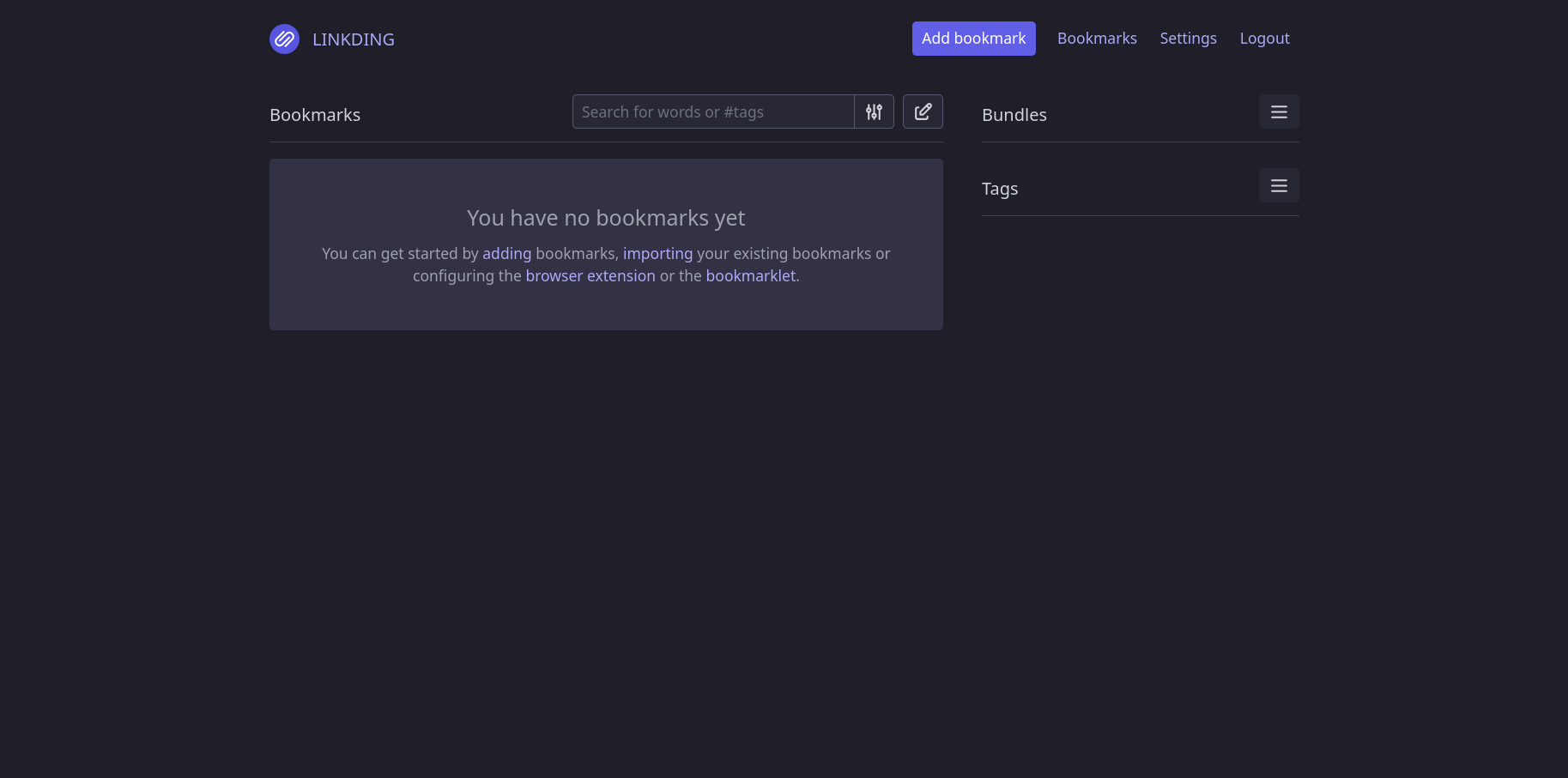
There is a big button to add a bookmark, and a search bar with filters and an option to bulk-edit bookmarks as well.
The sidebar shows Bundles and Tags. Tags are a well-understood concept, but Bundles is something new in Linkding and not well documented. The PR provides a description but essentially these are an automated categorization method for bookmarks that is higher-level than tagging.
There are other expected pages like various bookmark views as well as settings. A unique thing is the Django-admin interface which allows the super user to manage the installation itself.
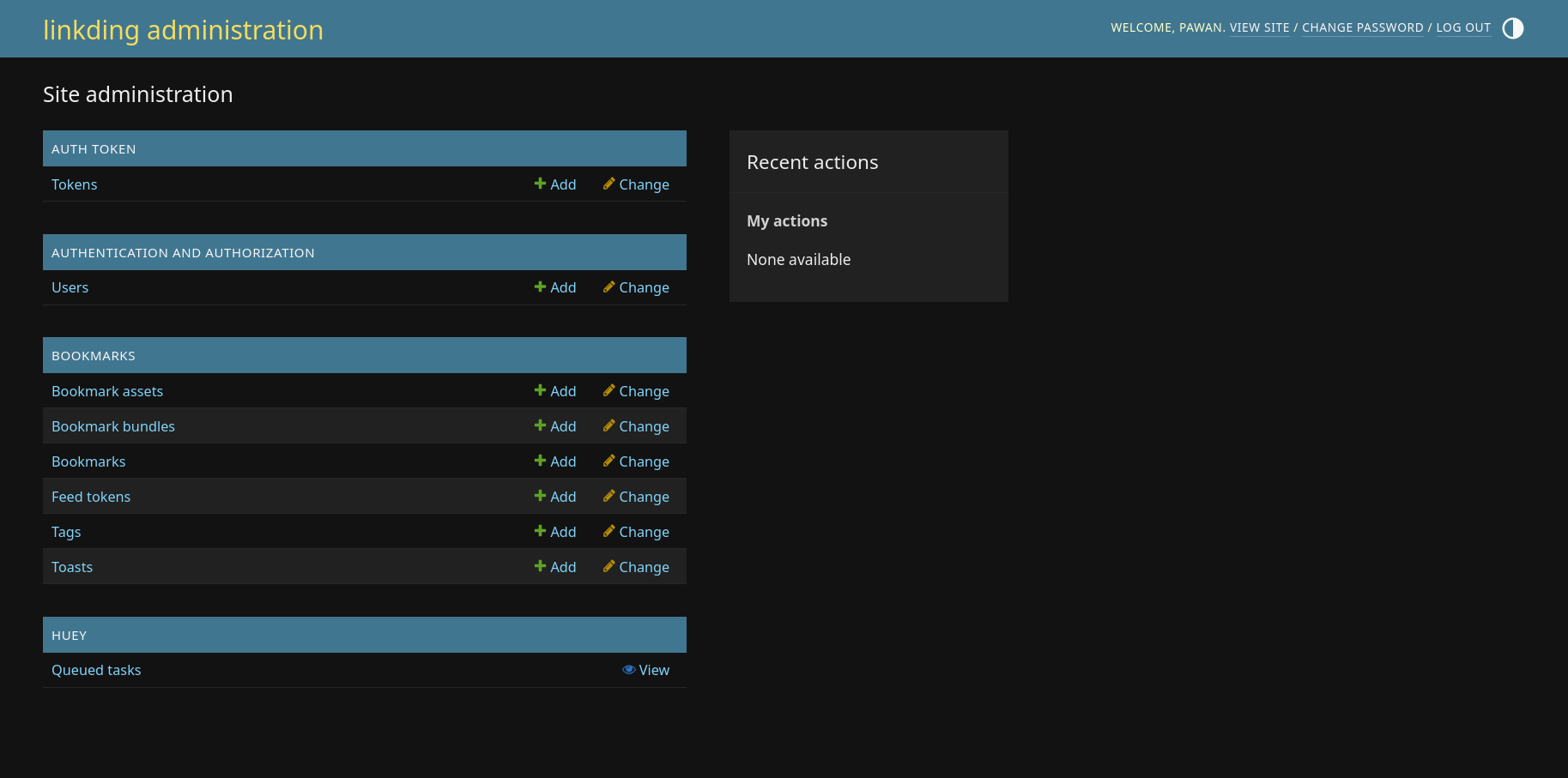
Here you can bypass the UI and manage the resources of this CRUD app directly, and also manage the background tasks.
The rest of the interface looks fairly barren for the lack of bookmarks. Let’s try importing from Pinboard!
Importing Bookmarks
Linkding supports importing and exporting bookmarks in ‘Netscape HTML format’. This is fortunately a format Pinboard can export to, so let’s try that.
Exporting the format from Pinboard and importing into Linkding worked almost flawlessly - I did get one bookmark that failed to import. The UI helpfully told me:
1 bookmarks could not be imported. Please check the logs for more details.
But it did not tell me where to look at the logs. Since we are budding sysadmins, we know we can inspect things in docker. So let’s try that.
docker compose logs
This found the smoking gun:
linkding  | 2025-12-28 23:38:07,673 ERROR Error importing bookmark: NetscapeBookmark(href='http://rick_oleson.tripod.com/index-136.html', title='My favorite Photographi...
linkding  | Traceback (most recent call last):
linkding  |   File "/etc/linkding/bookmarks/services/importer.py", line 167, in _import_batch
linkding  |     bookmark.clean_fields(exclude=["owner"])
linkding  |     ~~~~~~~~~~~~~~~~~~~~~^^^^^^^^^^^^^^^^^^^
linkding  |   File "/etc/linkding/.venv/lib/python3.13/site-packages/django/db/models/base.py", line 1707, in clean_fields
linkding  |     raise ValidationError(errors)
linkding  | django.core.exceptions.ValidationError: {'url': ['Enter a valid URL.']}
linkding  | 2025-12-28 23:38:07,701 WARNING Failed to assign tags to the bookmark: NetscapeBookmark(href='http://rick_oleson.tripod.com/index-136.html', title='My favorite Photographi.... Could not find bookmark by URL.
And fair enough, I can’t reach that site anymore. Indeed, the last capture is from 2021 . Shame, because it’s a fantastic piece of history - and you may enjoy it by visiting the link above - thanks Internet Archive!
Returning to the homepage, we see a better representation of the product.
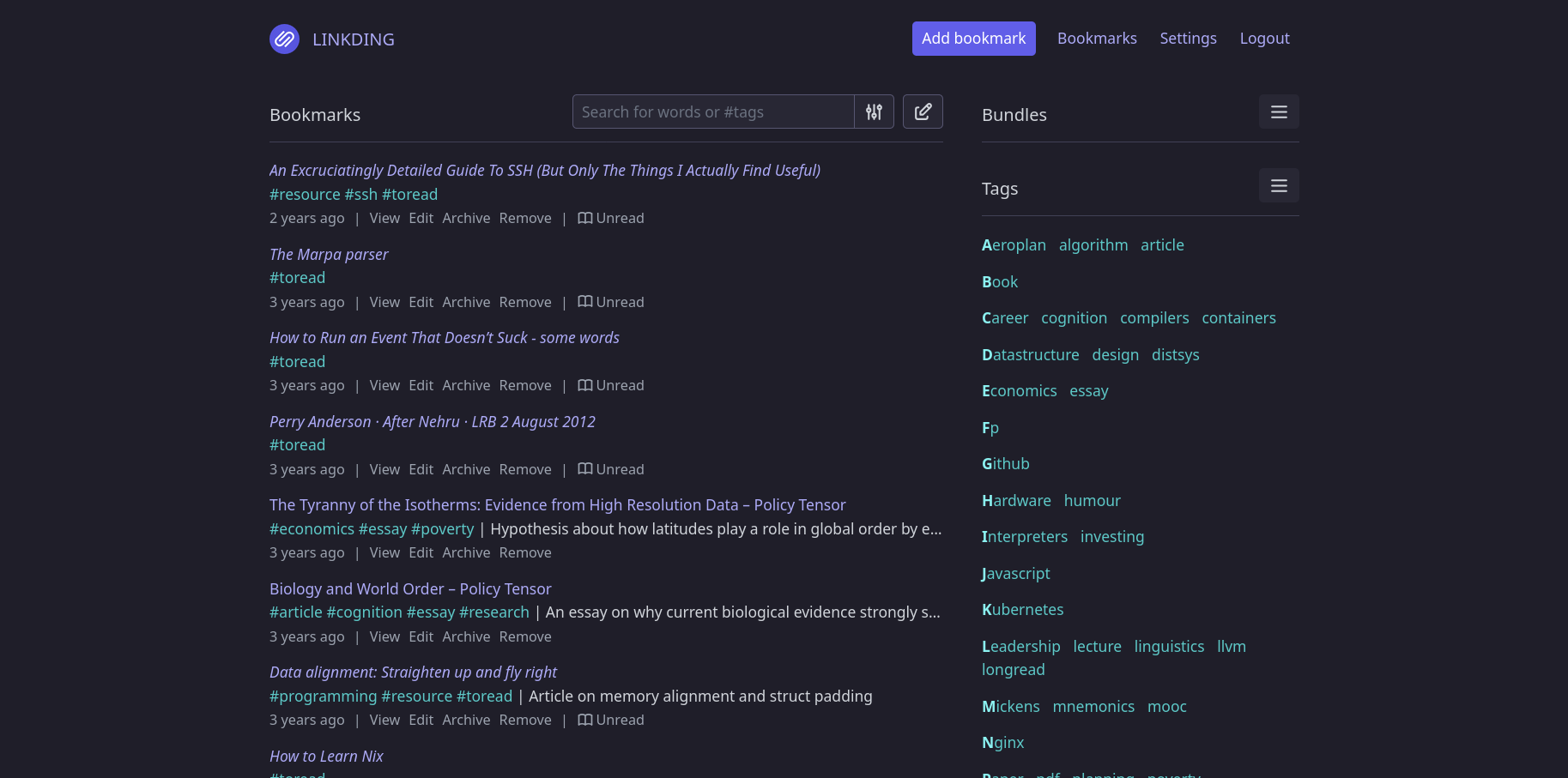
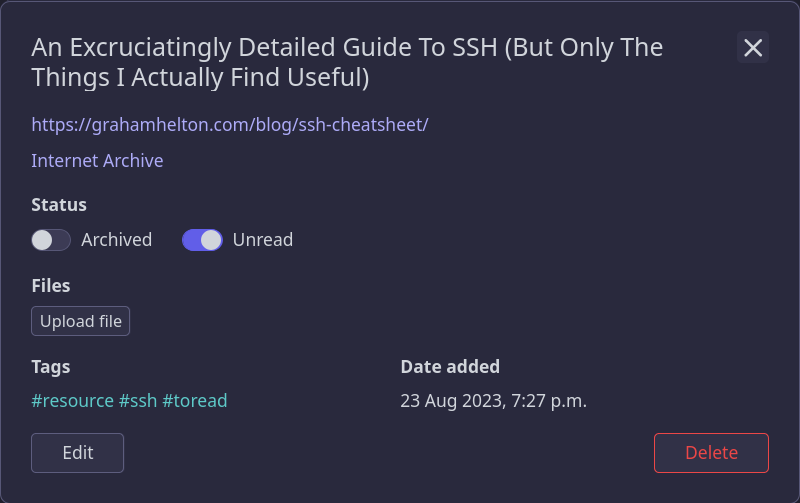
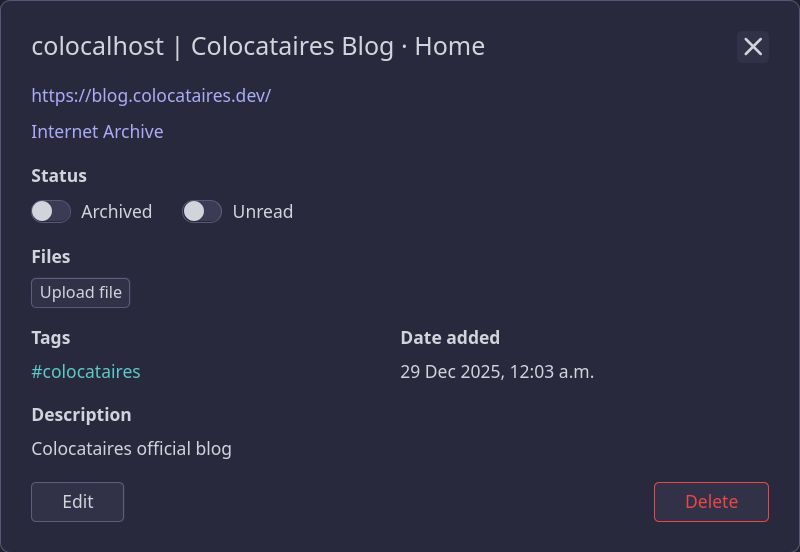
Clicking on “View” on one brings up a modal with details. Linkding has successfully imported the read and archived status alongside the metadata as well.
We can also create a new bookmark manually - simply press n on the keyboard.
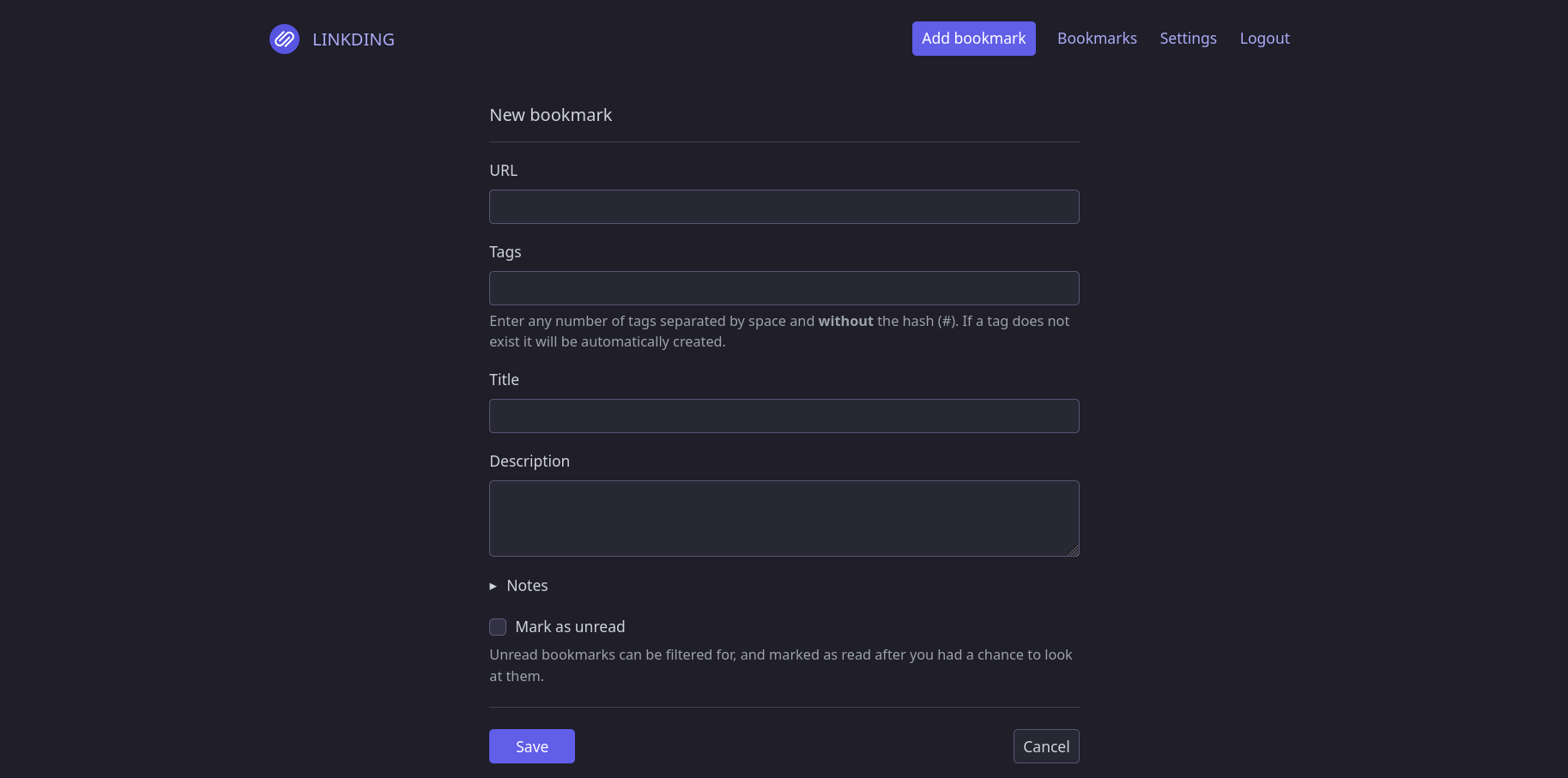
That looks too daunting - and not how this is supposed to be used day-to-day. Instead, let’s install the browser extension. We can navigate to the Settings > Integrations page to find the links and related settings like the API key. You can also use a bookmarklet instead.
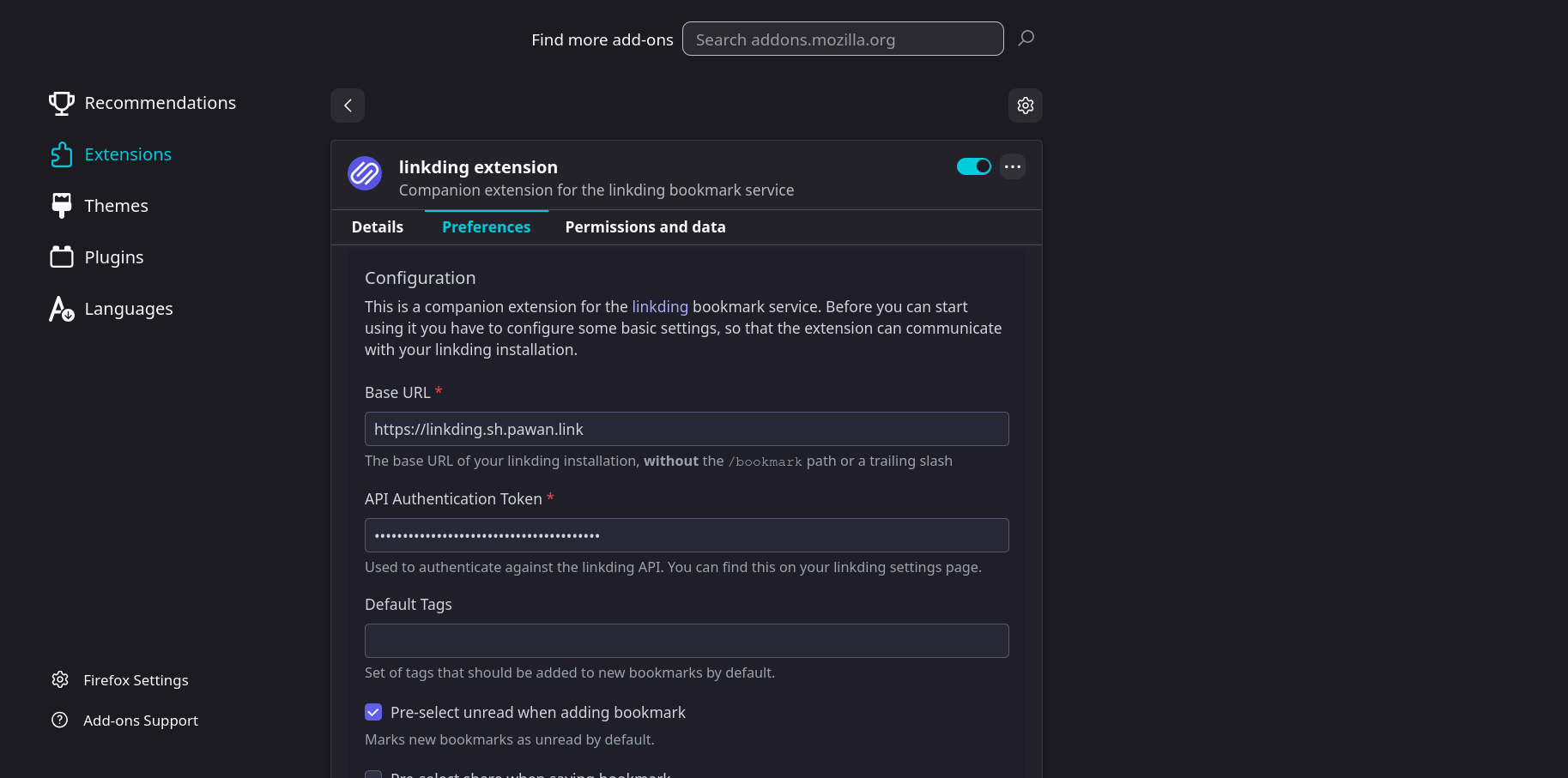
After installing the extension, I configured it with the domain and API key from the settings page.
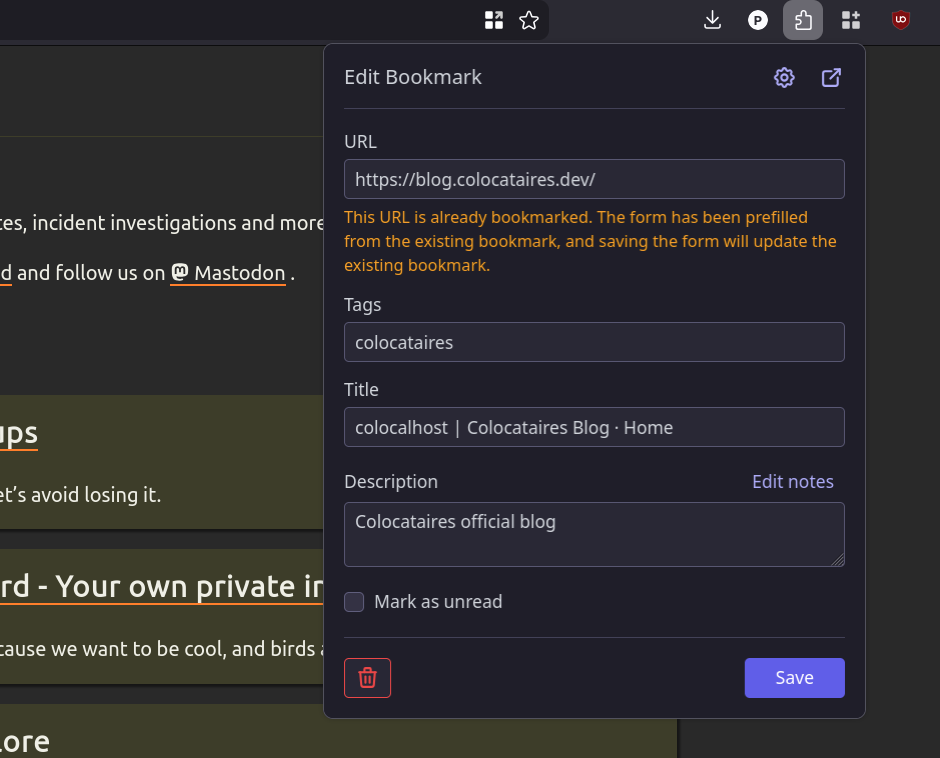
After saving the configuration, we should be able to add new bookmarks using the keyboard shortcut (Shift + Alt + L for me on Firefox).
And it appears in the bookmarks list in Linkding.
Exporting data
We definitely want to check if we can get our data out of a service like this, although it shouldn’t be a concern where you also own the database (SQLite in this case).
And sure enough, the Export option in Settings works as the inverse of Import, spitting out a Netscape HTML file that you can open in your browser and read. However it does not export any data about “Bundles” because of the format restrictions.
The documentation does have a good writeup about backing up the DB itself, and that will also allow you to “export” the bundles alongside the bookmarks.
Other niceties and features
Our tour is coming to close but I did want to mention some other features before we go.
- The ‘Autotagging’ feature seems quite nifty - if you want to organise links based on the URL. Although the Bundles feature is way more powerful.
- Linkding can archive the pages locally. We didn’t see this in action, but this seems unnecessary if you trust the Internet Archive to exist since it creates a link to the Wayback Machine automatically - and can also create new snapshots (reminder to donate to the Internet Archive! ).
- There are various options in the settings to alter how bookmarks are displayed. You can ask Linkding to fetch images based on the current state of the page to display alongside the bookmark. This can provide a more “modern” look if you are not into the minimalist style.
- The API can be used to build your own integrations if you are so inclined - you can send URLs to both Linkding and ArchiveBox if you wish!
Conclusion and a note for the future
And we are done! Linkding seems like a good entry into the busy Bookmarks-manager market. While it lacks some of the fanciest features like LLM-based auto-categorization, that may actually be a pro for many people. It is very easy to install (as long as you are using Docker) and not full of complex configuration options - and can integrate well with the outside world via robust import/export handling and extension support, hopefully saving you from bitrot.
This was a good note to end this first season of Self-hostember on. We generally leave a note to follow us for future self-hostember posts, but there won’t be another one in that ilk for a while. However, if you liked all the effort that went into writing these up, you can still follow us for other content we have lined up, including but not limited to:
- A background on how we got started
- Intricacies of running a small ISP in Canada
- Devlogs about things we are building to power our business
And more. If that interests you, find us on Mastodon or subscribe to our RSS feed . Thank you for reading this far. Hope you enjoy the rest of your holidays!