Self-Hostember #12: Booklore
Table of Contents
ℹ️ This post is part of a series , and it assumes that you’ve followed the instructions from Day Zero first.
Introduction
For reasons , I’ve recently found myself looking for a new tool that I can use to manage my eBook collection. I’d seen references to Booklore, so this is a great chance to try it out. I read using a Kobo and an iPhone, and I wouldn’t mind having access from other devices.
Booklore lists support for Kobo and OPDS (for which there should be iOS support through various third-party reader software). It also has a demo version
you can try before you buy docker compose up
Funding and License
Booklore is GPLv3 and its primary author, Aditya Chandel, solicits support via OpenCollective.
Installation
The installation instructions provide a docker-compose.yml, making a mockery of this blog post. I’ll tweak it a bit to make it fit in with decisions we’ve made in other episodes of this blog series (binding to localhost etc.):
services:
  booklore:
    image: ghcr.io/booklore-app/booklore:v1.15.0
    container_name: booklore
    environment:
      - TZ=Etc/UTC
      - DATABASE_URL=jdbc:mariadb://mysql:3306/booklore?allowPublicKeyRetrieval=true&useSSL=false
      - DATABASE_USERNAME=root
      - DATABASE_PASSWORD=str0ngp4ssw0rdh3r3
      - BOOKLORE_PORT=5534
    depends_on:
      mysql:
        condition: service_healthy
    ports:
      - "127.0.0.1:5534:5534"
    volumes:
      - ./data:/app/data
      - ./books:/books
      - ./bookdrop:/bookdrop
    restart: unless-stopped

  mysql:
    image: mariadb
    container_name: mysql
    environment:
      - TZ=Etc/UTC
      - MARIADB_ROOT_PASSWORD=str0ngp4ssw0rdh3r3
      - MARIADB_DATABASE=booklore
    restart: unless-stopped
    volumes:
      - ./mariadb:/var/lib/mysql
    healthcheck:
      test: [ "CMD", "mariadb-admin", "ping", "-h", "localhost" ]
      interval: 5s
      timeout: 5s
      retries: 10
And we’ll put the whole thing behind Caddy and reload our config:
booklore.easuan.ca {
   reverse_proxy 127.0.0.1:5534
}
sudo systemctl reload caddy
Using it
It takes a few minutes for Booklore to start after the initial docker compose up -d, but after things have settled down we can create our initial user:
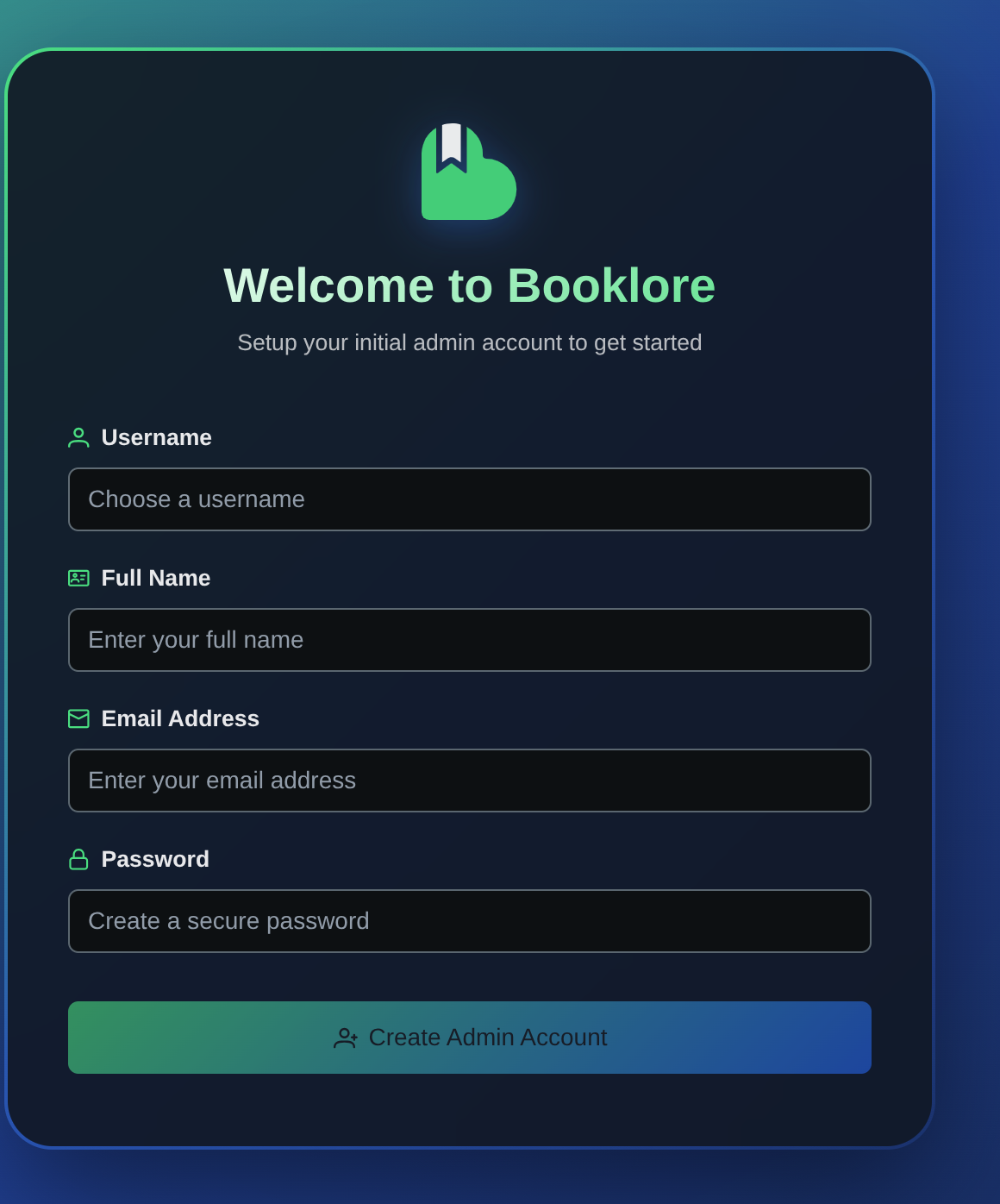
And after logging in, my initial impressions are good, and I’ll create an initial library:
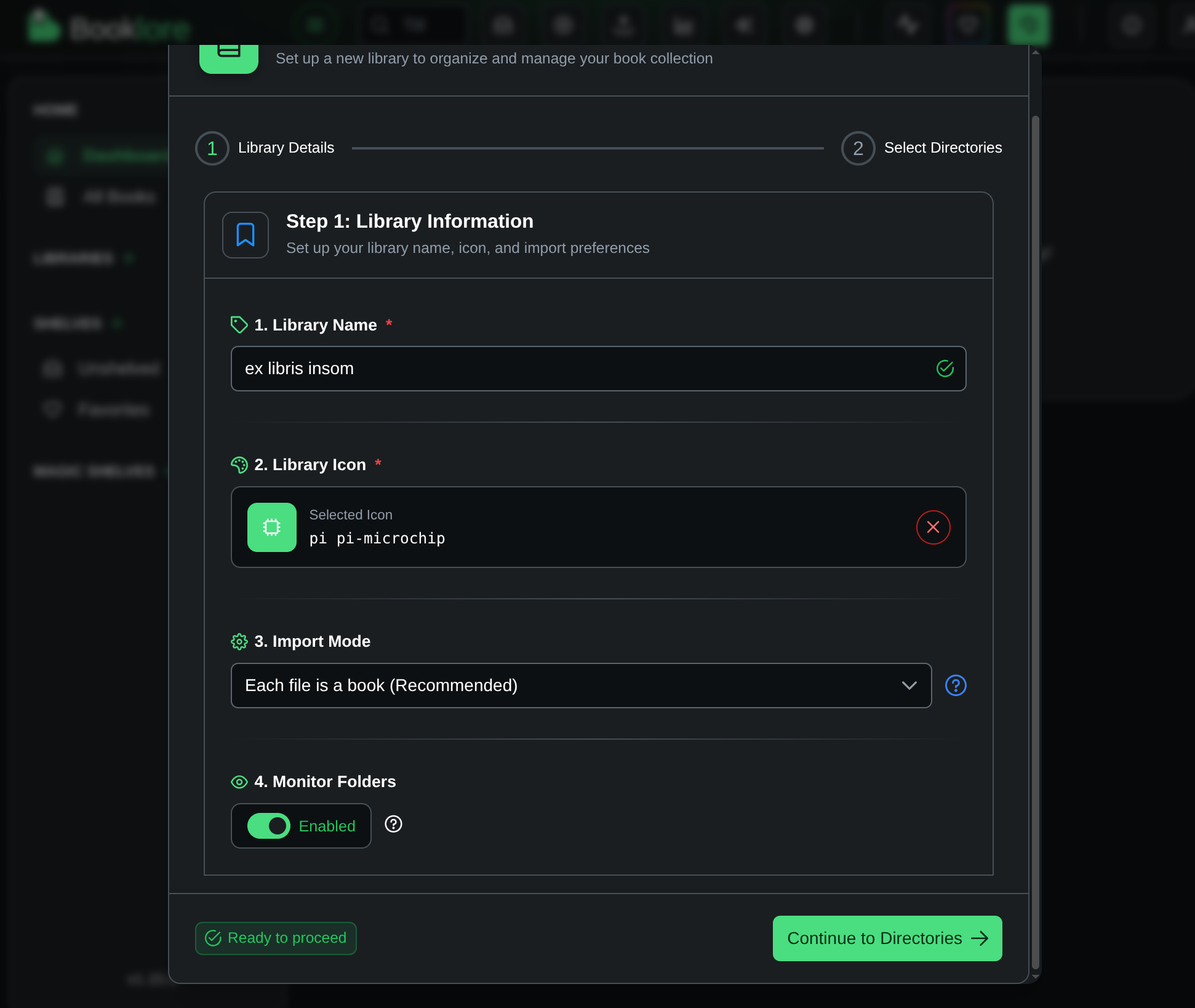
(Boy, that material design “pi-microchip” icon sure reminds me of Colocataires’ logo!)
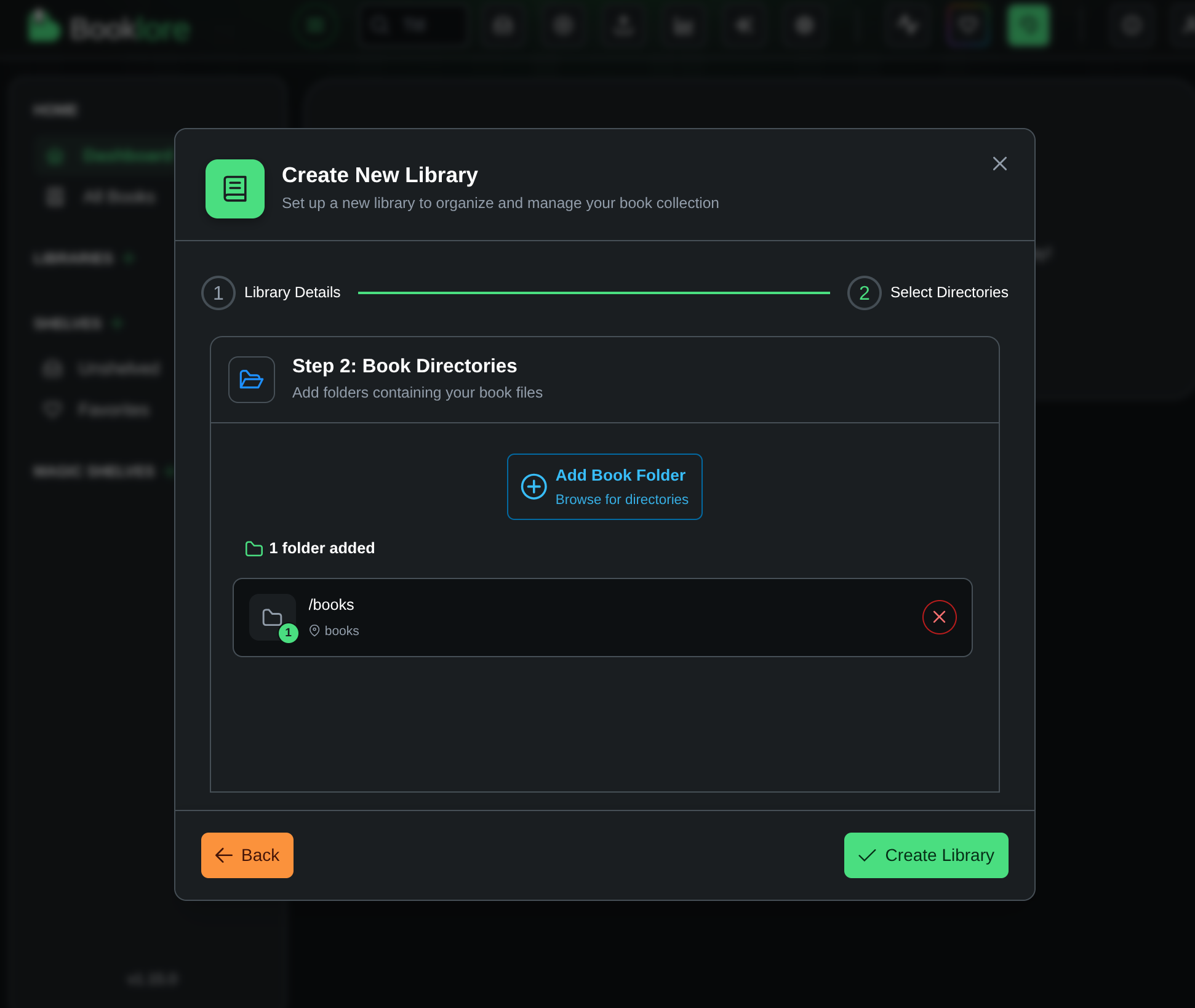
I added /books and I know that’s one of the directories made available to Docker:
I’m going to try out adding these books to the bookdrop. It’s not immediately clear why that’s different than adding it to a library, but that’s what happens when you absolutely don’t read the documentation:
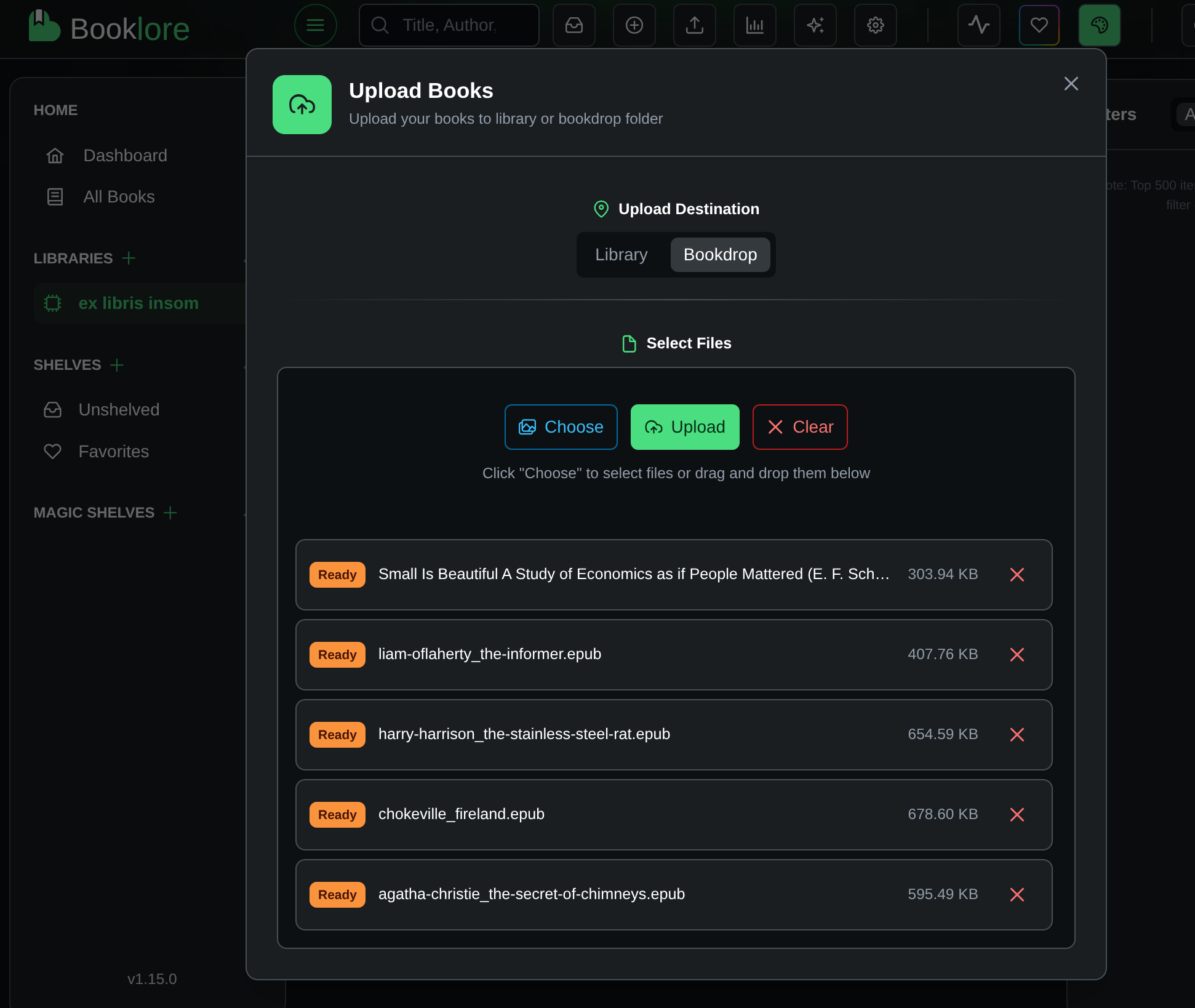
Oh, they go into a pending area where I can file them into different libraries (if I had more than one) and edit their metadata; in bulk, if necessary.
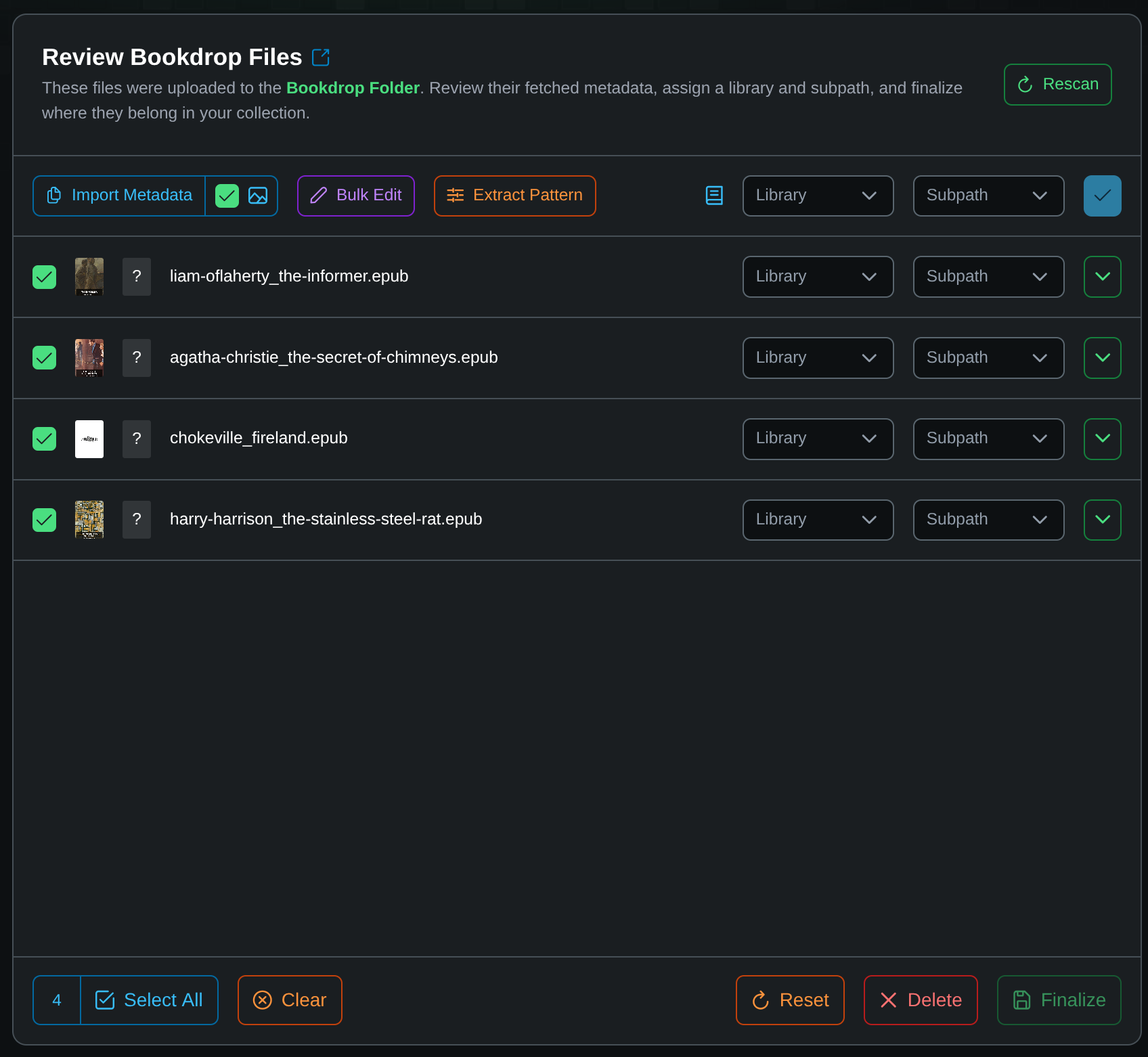
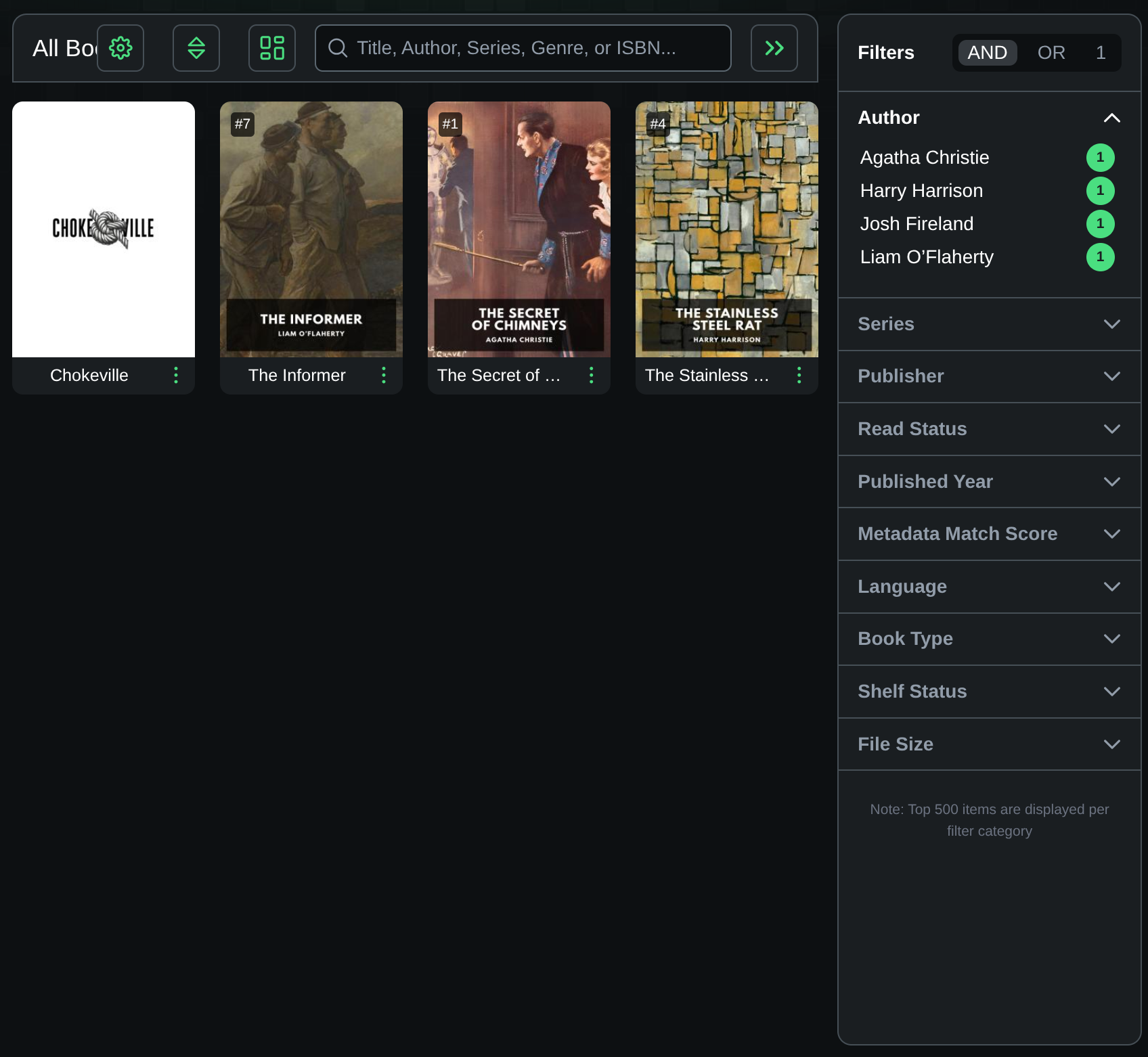
Nice. It’s imported thumbnails and the appropriate metadata from these Standard Ebooks editions. To be fair, this is one of the best sources for well tagged epubs. The Chokeville epub needed a couple of metadata edits, through no fault of Booklore.
Integrating with Kobo
I don’t spend a lot of time tending to my metadata or reading via the web, but I am interested in Booklore’s sync features. Let’s enable the Kobo integration, over in Settings -> Devices:
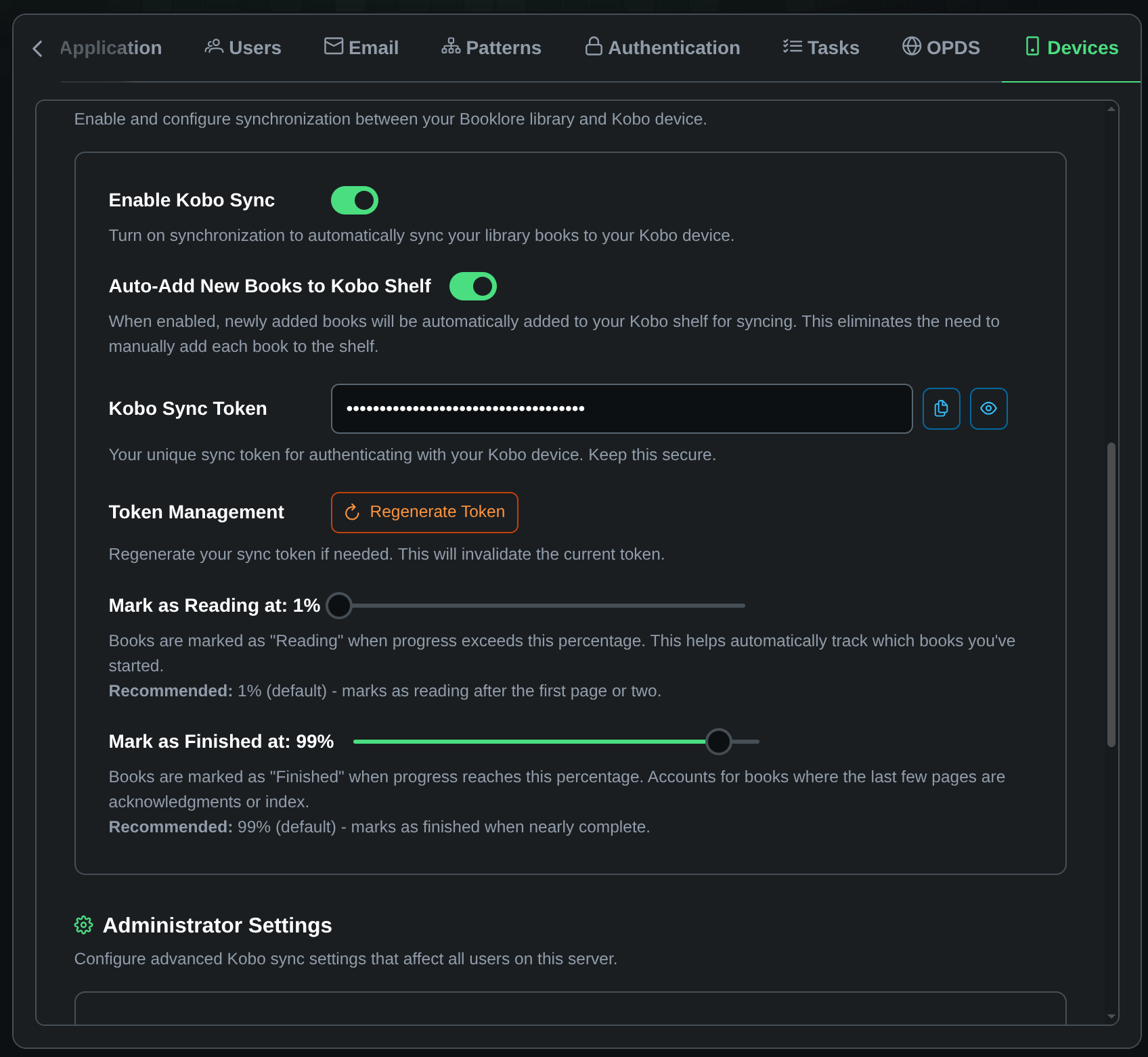
I’ve also turned on the option “Convert to KEPUB” which looks like it has to be global for the whole server.
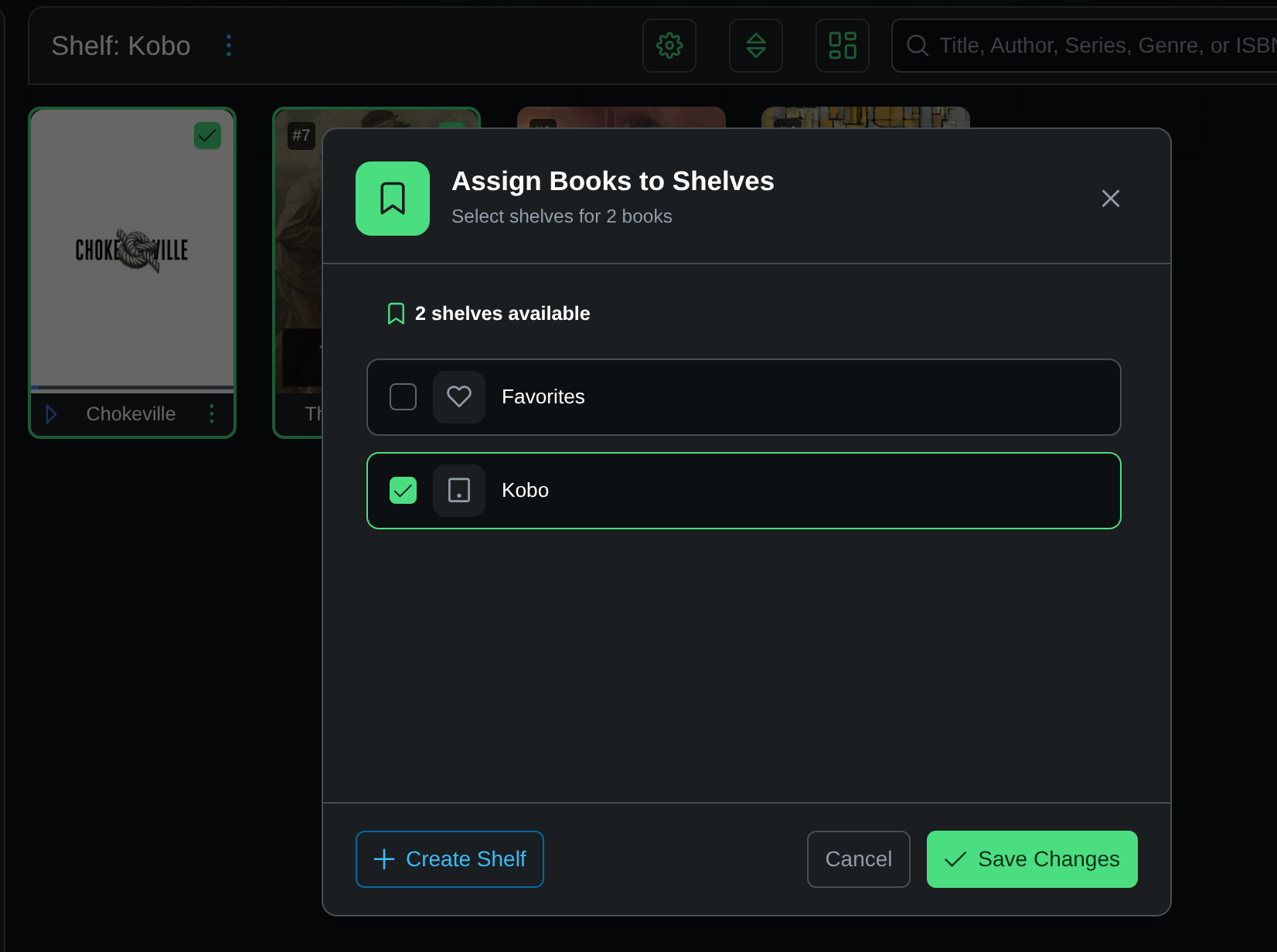
I’ll assign some books to the new “Kobo” shelf:
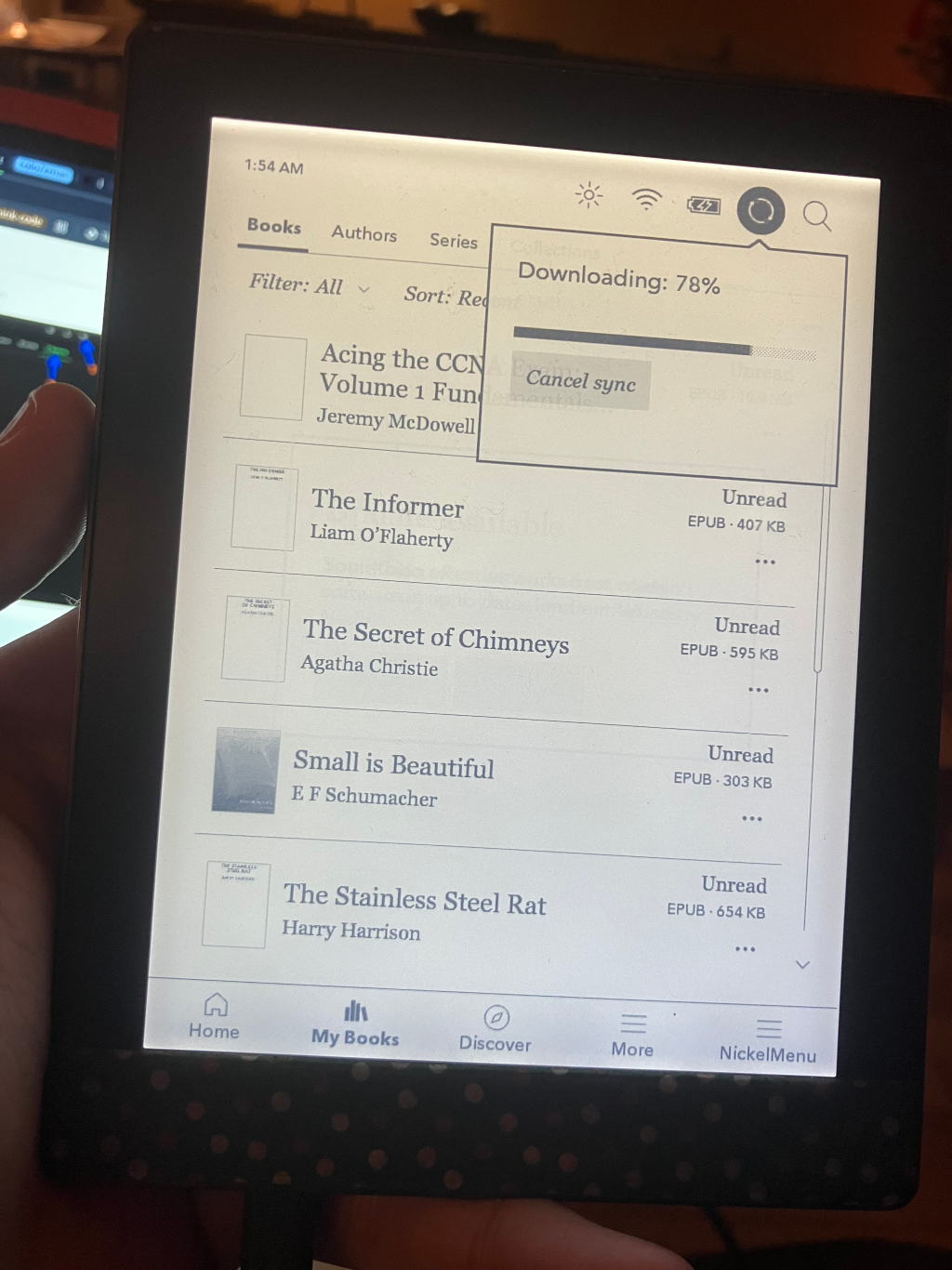
I connected my Kobo as a disk and edited the file as per the instructions in the docs . Be aware that as of today (2025-12-19), there’s an open issue with the very newest Kobo firmware breaking sync. It also breaks Calibre and other bookstore “emulators”. Hopefully it’s worked around soon, until then, don’t update!
Integrating with OPDS
OPDS doesn’t work the same as Kobo; it doesn’t require that things be added to a specific shelf, perhaps because client software is expected to be smarter and let you choose what you download (as opposed to the Kobo sync, which just downloads anything on the shelf).
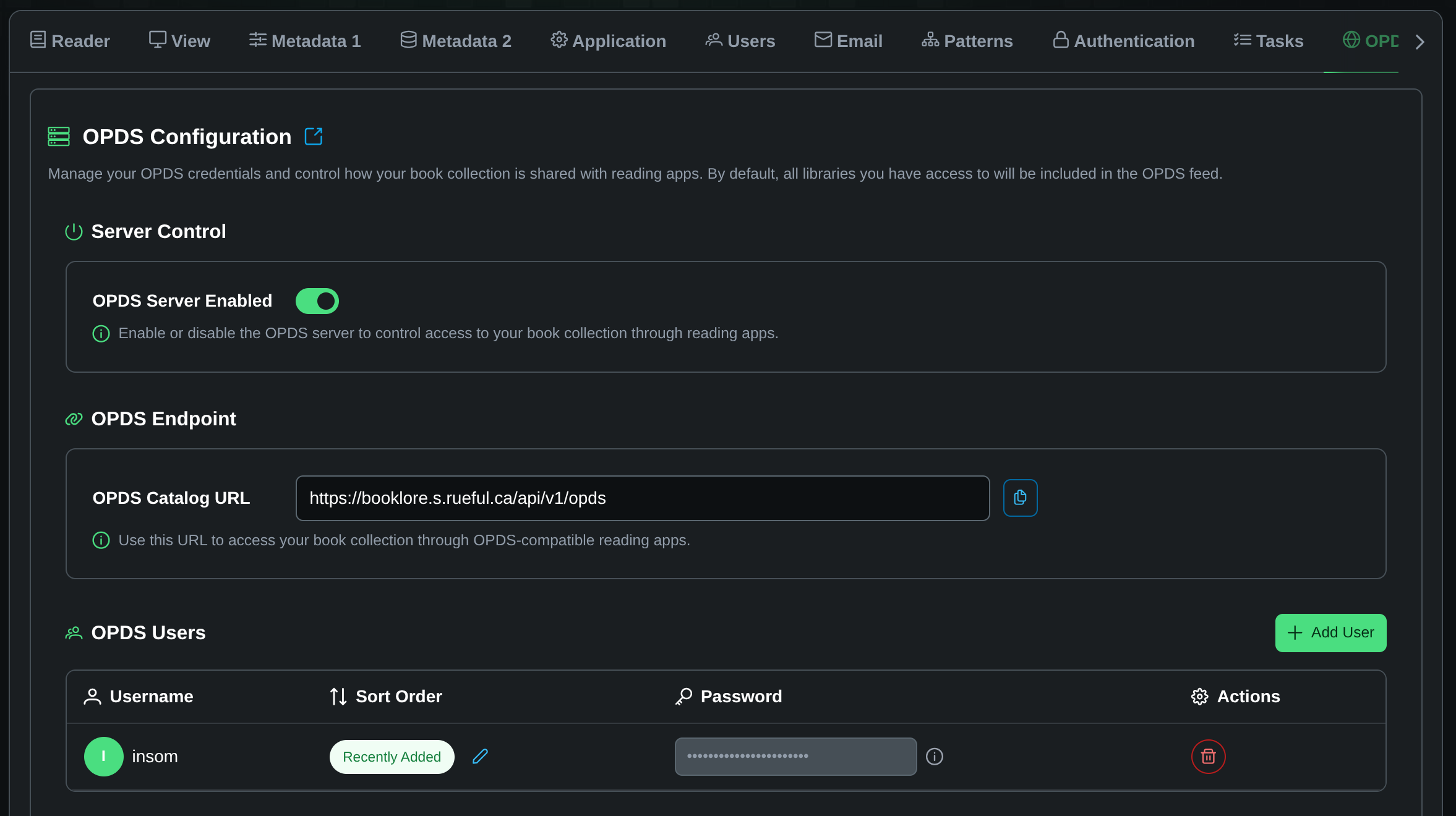
I enable the server under Settings -> OPDS and you have to create users. These users are separate to actual users that you create for Booklore; they just secure the HTTP Basic auth for the OPDS API.
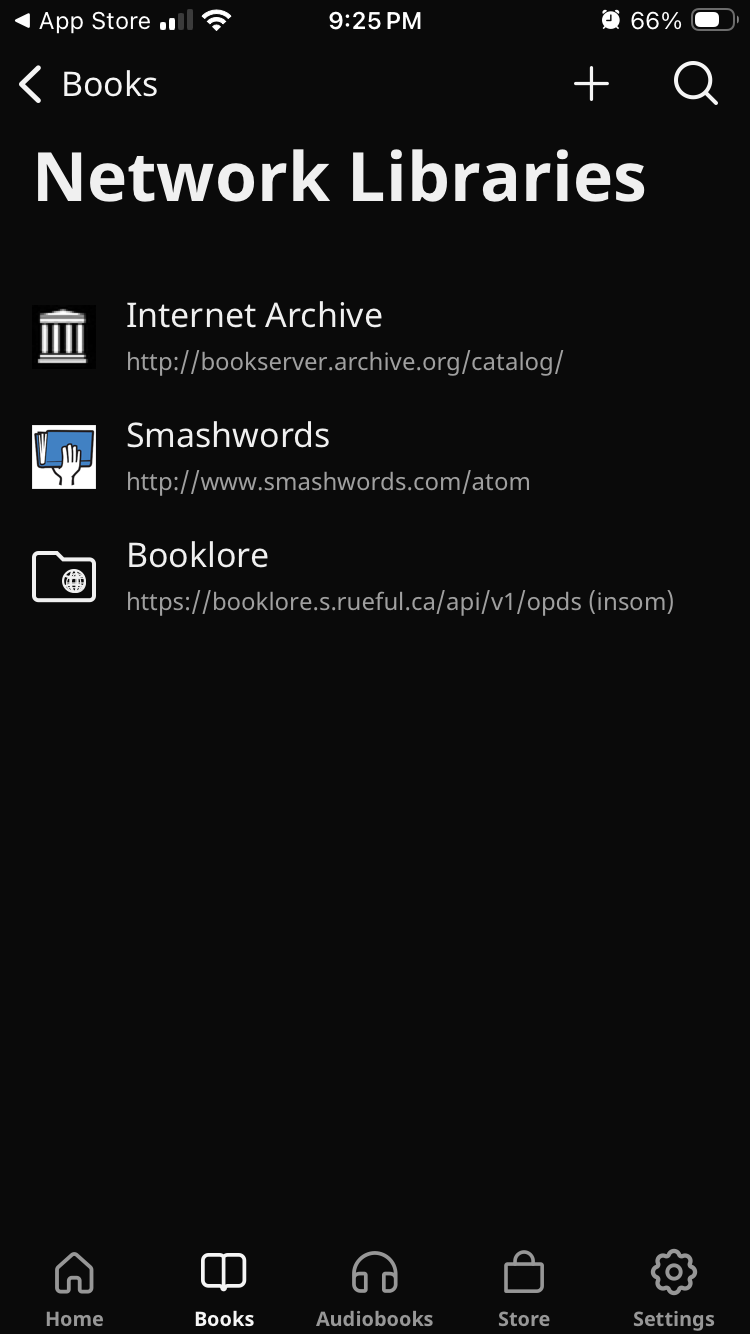
I have an iPhone so I’ve picked PocketBook Reader as a client. This isn’t an endorsement, but so far it’s okay. It is “free”, with in-app purchases.
I poked around Settings looking where to add the OPDS server, but actually you add it under Books, using the right-most “globe” icon. You’re going to have to type in the whole URL from the settings, sadly. Then you can join the exalted ranks of Internet Archive as a source for books:
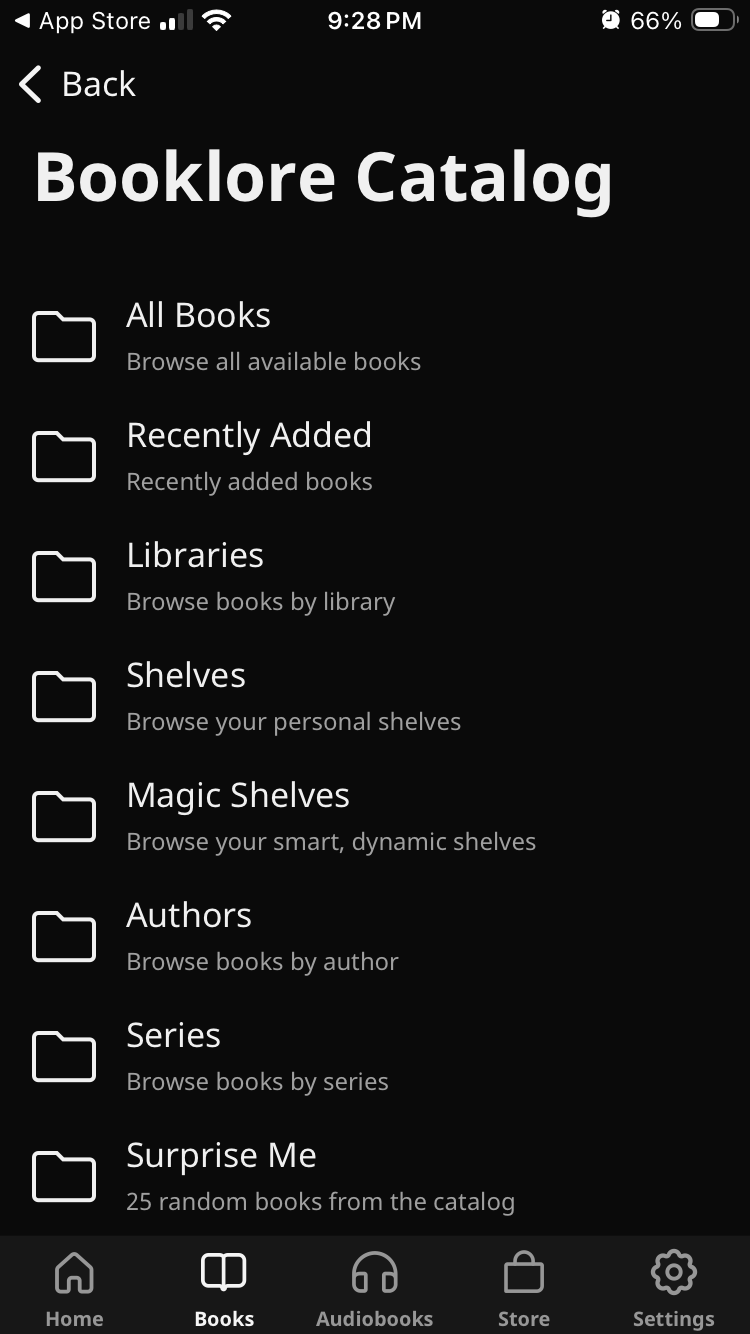
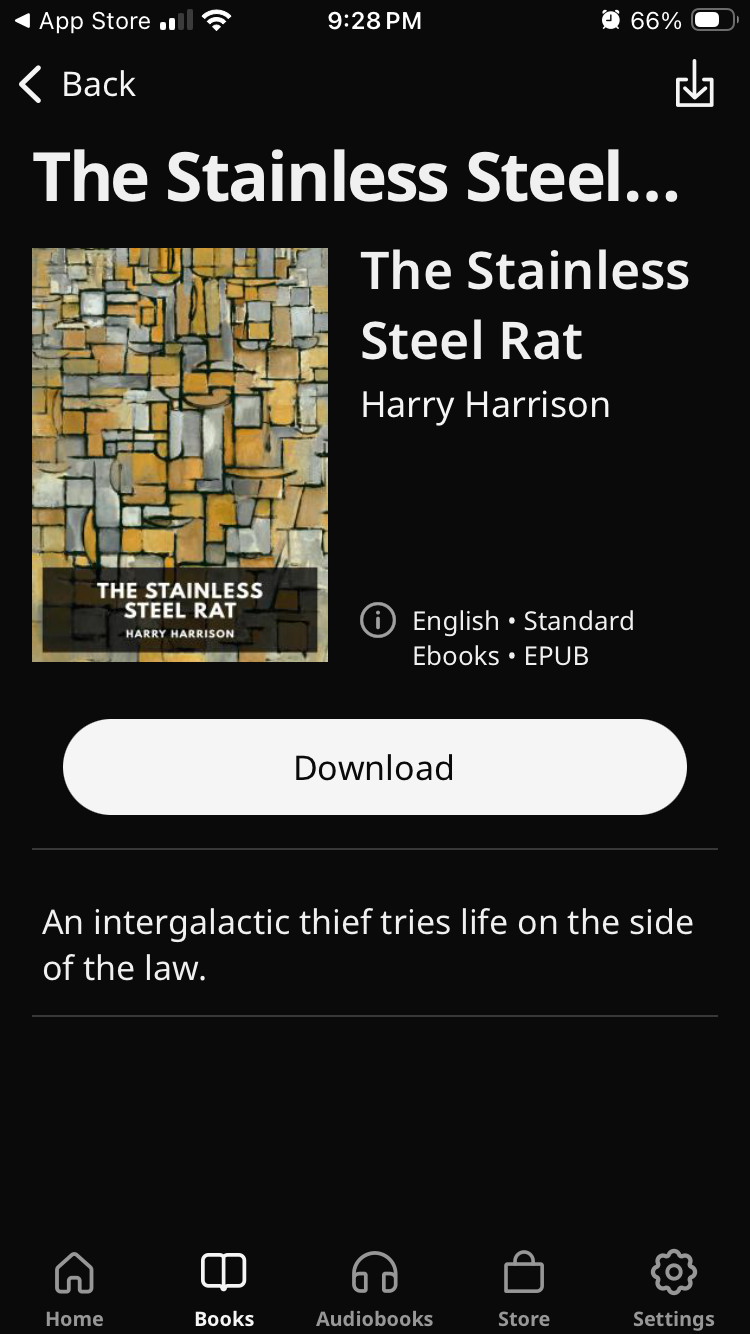
This just worked. I can click through, pick my library, download a book and open it, just like that.

Conclusion
That wraps up what I wanted from this piece of software. I know that some people like KOReader (I personally don’t) and I know that Booklore can even sync currently-read page between KOReader instances (like Amazon Kindles do), but I don’t use it and I wasn’t going to install it just to test. Let me know if you do, though!
Thanks for reading this far, and follow along for future posts in #Self-hostember . You can now follow us on Mastodon to keep up to date with us as well!